
Solve 6 everyday business problems with free remote access software
In today's sprawling business world, work doesn't happen in a single office building anymore. Staff are positioned hybrid and offices are spread across cities and countries, sales and field teams live out of hotels and airports. The IT team, however small, is expected to keep each of those computers running.
When a computer starts throwing errors two floors or two time zones away, someone still has to fix it. That's exactly what remote access software is built for: from a single console, you can connect troubleshoot, and secure the computers your company depends on, wherever they happen to be.
The good news is you don't need a huge budget. You can start with a capable no-cost option like ManageEngine Remote Access Plus, which covers a number of day-to-day IT issues. Here are practical tips to address seven of the most common IT problems.
1. Kill a frozen app on a user's PC without taking over their screen
It's the most common ticket in any queue: someone's Outlook or Teams has locked up, or the print queue is jammed, and they're dead in the water. You could spin up a full remote-control session but that takes over their screen, interrupts whatever they were doing, and makes people feel watched. Most of the time you don't need to. A remote task manager lets you see what's running on their machine and end the stuck process, or restart a hung service like the print spooler, quietly in the background while they carry on working.
Pro tip: Reach for the process or the service, not the reboot. Ending the frozen app or restarting the printer spooler fixes things in seconds and, unlike a reboot, doesn't cost the user their open tabs and unsaved work. Done quietly, the ticket is often closed before they've finished describing it.
2. Set up a new hire's laptop that's in another city
A new remote employee starts Monday. Their laptop shipped straight to them, or they picked one up locally, and it needs your standard apps, settings, and security baseline. Unattended access lets you connect to that machine and provision it end to end: install software, apply configuration, and drop files into place without the new hire having to sit and watch.
Pro tip: Stage it while they're at lunch on day one. Get the agent installed so the laptop checks in the moment it's online, then do the entire build in one unattended window. Push a ready-to-go welcome pack through a single file transfer instead of sending a dozen email attachments or setting things up manually for every new hire.
3. Rescue a traveling colleague when the VPN won't cooperate
Your sales lead is in a hotel an hour before a pitch, something's broken, an application unexpectedly crashes and the VPN either isn't set up on that device or won't connect through the captive hotel Wi-Fi. Some older remote desktop tools still need a VPN or an open port to reach the machine sitting behind hotel NAT. A tool that connects through a secure gateway reaches them anywhere they have an internet connection, no VPN, no firewall configuration needed.
Pro tip: Create a custom group with all your sales road warriors and field staff machines inside it so that when a time-sensitive call comes in, you jump straight to the right device in seconds instead of scrolling past every endpoint you manage.
4. Patch and run maintenance tasks without incurring a loss in productivity.
Updates, scripts, and cleanups have to happen, but running them during peak business hours interrupts work and half your target machines are switched off after hours anyway. Pair Wake-on-LAN with unattended access and the timing problem goes away: wake the machines that are asleep, run your updates or scripts, and power them back down when you're finished.
Pro tip: Wake, patch, sleep and watch the power bill. Waking a batch of PCs overnight, patching them, and shutting them down again means no daytime disruption and none of the wasted electricity of leaving machines on around the clock just so IT can reach them. Supporting several regions? Schedule each batch against its own local off-hours.
5. Prevent RDP exposure before it turns into a security incident
Plenty of small teams reach their office PCs by forwarding the RDP port through the router. It works and it's also one of the most reliably attacked setups on the internet, a favorite way in for brute-force attempts and ransomware. It's usually the first thing an auditor asks about, too. A remote access tool that tunnels through a secure gateway gives you the same reach with no open ports, and adds the controls a bare RDP connection simply doesn't have: MFA, role-based access, and a record of every session.
Pro tip: Record sessions, then close the port for good. Session recording plus role-based access gives you a clean “who accessed what, and when” answer for HIPAA, PCI, or GDPR conversations. And once everyone's moved over, actually close the RDP port leaving it open “just in case” is precisely the gap an attacker goes hunting for.
6. Grab a file off a machine nobody's watching
The invoice, the contract, the deck the whole team needs is sitting on a colleague's office desktop and they're out, or the machine was shut down for the night. “Email it to yourself” isn't an option when nobody's there to send it. Secure remote file transfer lets you pull the file straight off that machine, in either direction, encrypted, with no one at the other end.
Pro tip: Skip the detour that trips your DLP rules. Moving files through personal email or a consumer cloud drive is exactly what data-loss-prevention policies are meant to flag. Transferring directly over the encrypted session keeps company files inside company control and if the machine is asleep, Wake-on-LAN plus file transfer lets you wake it, grab what you need, and put it back to sleep.
One free console that handles all seven
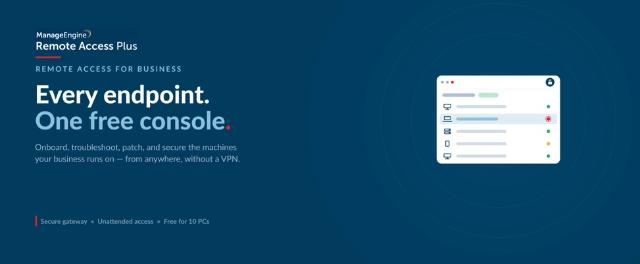
Every scenario can be resolved by the same tool, ManageEngine Remote Access Plus. It delivers remote troubleshooting, unattended access, file transfer, Wake-on-LAN, and a secure gateway into one browser-based console, so your team isn't juggling half a dozen separate utilities.
- One console for every machine: Windows, macOS, and Linux from the same dashboard, with iOS and Android apps for support on the move.
- Security built in: 256-bit AES encryption, MFA, role-based access, end-user confirmation, and session recording.
- No VPN, no open ports: Connections run through a secure gateway instead of an exposed RDP port.
The part that makes it easy to start: the free edition covers up to 10 computers with the full feature set, at no cost and with no time limit. For a lot of small teams and MSPs kicking the tires, that's enough to run everyday support without spending a thing. When you outgrow it, paid plans scale to as many endpoints as you manage.
Ready to try it? Download Remote Access Plus and start free.
Author Bio:
Nikhil Narayan is a Product Marketing Manager at ManageEngine with 7+ years of experience in remote access solutions. As a marketing analyst and writer, he covers enterprise IT, remote support, endpoint management, and digital workplace technologies.